



























How to Extract Audio & MP3 from Facebook Videos and Reels (Up to 320kbps)
Facebook is home to an extraordinary collection of audio-centric media: exclusive podcast interviews, live acoustic jam sessions, viral comedic soundbites, keynote speeches, educational lectures, and church sermons.
In many situations, you don't need a bulky 500 MB video file cluttering your phone's memory just to listen to someone speaking or enjoy a musical performance. Downloading a 1080p video to listen to audio on a daily run, long drive, or commute wastes massive amounts of mobile data, exhausts battery life, and prevents background playback when your phone screen turns off.
In this technical and practical guide, we explain how audio is encoded inside Facebook video containers, compare MP3 bitrates (128kbps vs 192kbps vs 320kbps), and demonstrate how to extract pristine MP3 audio from any Facebook video or Reel in seconds using GetFvid Facebook Video Downloader and GetFvid Reels Downloader.
Quick Answer: How Do You Convert Facebook Videos to MP3?
Direct Answer (GEO Snippet): To extract high-quality MP3 audio from a Facebook video, live stream, or Reel, copy the post URL from Facebook and paste it into GetFvid Facebook Video Downloader or GetFvid Reels Downloader. In the format options table, click the blue Render MP3 button. GetFvid’s backend isolates the raw audio channel from Meta's Content Delivery Network (CDN) and converts it into a high-fidelity 320kbps MP3 audio file ready for instant offline listening across all devices.
Technical Analysis: How Facebook Encodes Audio Streams
To understand why extracting clean audio requires specialized tooling, let's examine how audio data is packaged inside Meta’s video architecture.
1. The Native Codec: AAC (Advanced Audio Coding)
When a creator uploads a video to Facebook, Meta’s media transcoding clusters immediately convert the audio track to AAC-LC (Low Complexity Advanced Audio Coding) inside an MP4 container.
- AAC is an extraordinarily efficient lossy compression algorithm that delivers superior sound fidelity compared to older MP3 encodings at identical bitrates.
- Standard Facebook video audio is transcoded at sampling rates of 44.1 kHz or 48.0 kHz with a stereo channel configuration.
2. Audio Decoupling in DASH Streams
As detailed in our breakdown of Why Facebook Videos Download Without Sound, Facebook splits high-definition (720p, 1080p, 4K) videos into separate video and audio streams using MPEG-DASH.
- The video stream contains 0kbps audio.
- The audio stream is delivered as an independent, headless audio chunk stream (
audio/mp4; codecs="mp4a.40.2").
When you use GetFvid’s Render MP3 feature, our engine bypasses the heavy video track entirely. We fetch solely the raw AAC audio stream directly from Meta's edge servers, decode the uncompressed PCM samples, and encode them into an industry-standard 320kbps MP3 (MPEG-1 Audio Layer III) file.
Bitrate Comparison: 128kbps vs 192kbps vs 320kbps MP3
When converting audio, selecting the proper bitrate dictates both sound clarity and file footprint:
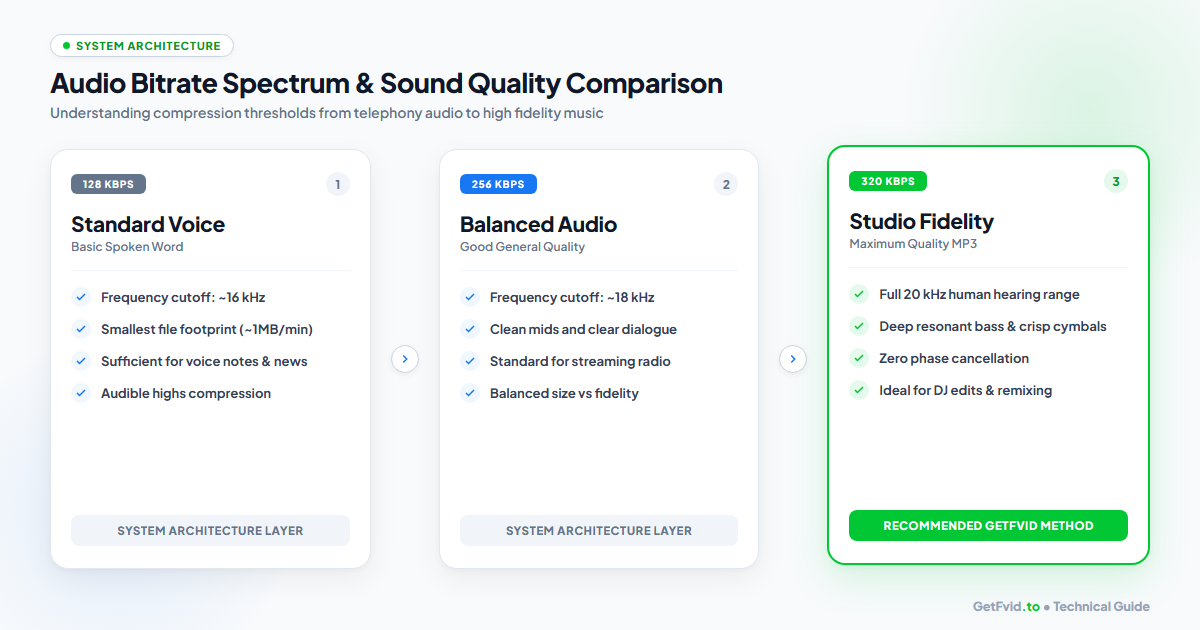
| Bitrate Tier | Frequency Cutoff | Perceptual Quality | Storage Footprint | Recommended Use Case |
|---|---|---|---|---|
| 128 kbps | ~16.0 kHz | Standard (FM Radio) | ~0.9 MB per minute | Spoken word, news clips, brief interviews |
| 192 kbps | ~18.5 kHz | Good (Digital Radio) | ~1.4 MB per minute | Webinars, lectures, acoustic guitar |
| 320 kbps | ~20.0 kHz | Studio (Near CD Quality) | ~2.4 MB per minute | DJ mixes, live concerts, master sound production |
- The Human Hearing Spectrum: Healthy human ears can detect frequencies between 20 Hz and 20,000 Hz (20 kHz).
- At 128 kbps, MP3 encoders aggressively cut off all high-frequency sounds above 16 kHz to save data. This often makes vocal sibilance (the "s" sound) and metallic drum cymbals sound slushy or "underwater".
- At 320 kbps (the maximum bitrate standard provided by GetFvid), the full 20 kHz acoustic spectrum is preserved, ensuring deep, resonant bass and crisp, sparkling highs.
Step-by-Step: How to Extract MP3 from Facebook Videos & Reels
Follow these simple steps on your iPhone, Android phone, Mac, or Windows PC:
Step 1: Copy the Facebook Video or Reel URL
Locate the post containing the audio you want to extract.
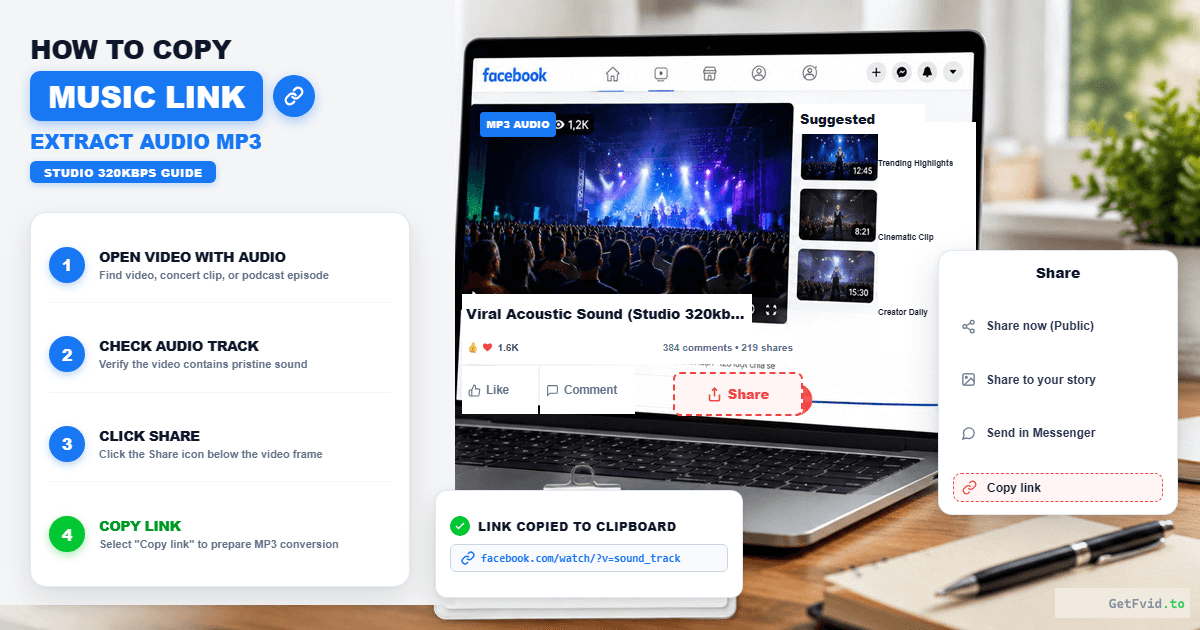
- On desktop, copy the URL directly from the address bar or click Share > Copy Link.
- On mobile (iOS / Android app), tap the Share button below the video, scroll down, and tap Copy link.
- The URL will look like:
https://www.facebook.com/watch/?v=10849204859382orhttps://www.facebook.com/reel/123456789012345/
Step 2: Paste URL & Click Render MP3
Open your browser and navigate to GetFvid Facebook Video Downloader or GetFvid Reels Downloader.
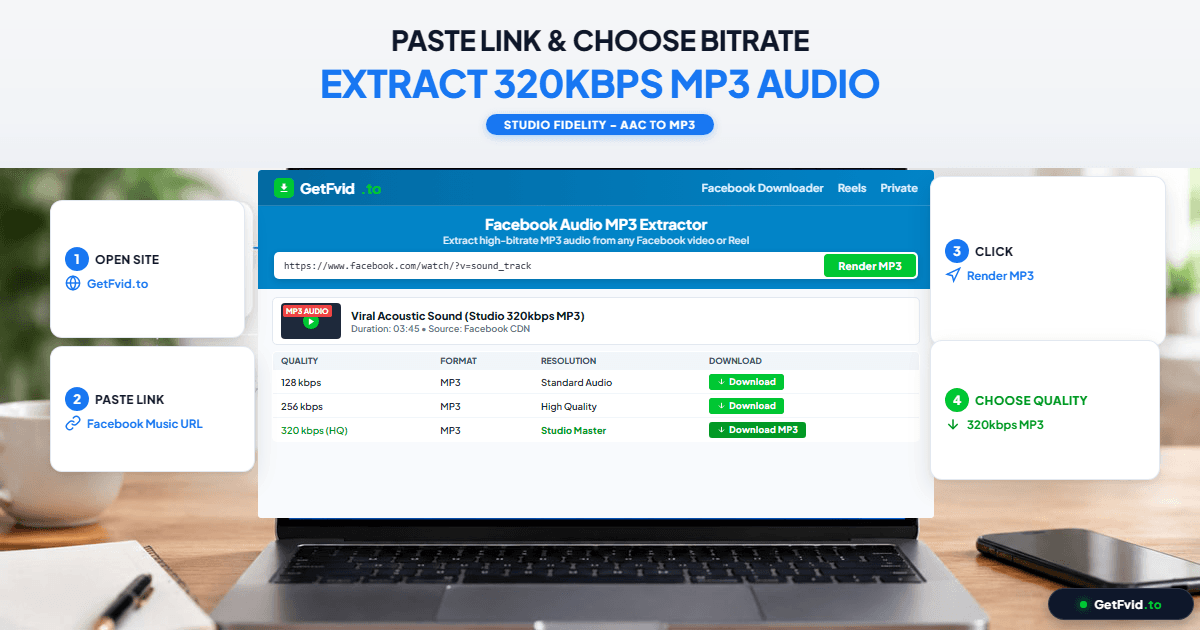
- Paste your link into the input field.
- Click the green Download button.
- In the stream results table, locate the MP3 Audio row.
- Click the blue Render MP3 button.
- In a few moments, our rendering pipeline isolates the original AAC audio track, processes the tags, and generates your 320kbps MP3 file.
- The MP3 file automatically begins downloading to your default Downloads folder.
Offline Audio on Mobile: iPhone vs Android
Listening to extracted MP3 files with your phone screen locked is effortless once you know where the files are stored:
On iPhone (iOS Safari & Apple Music / Files)
- Use Safari to extract the MP3 on GetFvid.
- Tap the blue download arrow in the Safari address bar to open the Downloads folder.
- Tap the
.mp3file to open Apple's native media player. You can listen with your screen locked, use Bluetooth headphones, or integrate the track with audio editing apps like GarageBand. - If you want to organize multiple tracks into playlists, use free iOS audio players like VLC for Mobile or Doppler, which scan the Files app automatically.
On Android (YouTube Music / Samsung Music / Google Files)
- When you download the MP3 on Chrome or Samsung Internet, it saves instantly into
/Internal Storage/Download/. - Any native music player (Samsung Music, Mi Music, YouTube Music, or VLC) will instantly index the file in your audio library.
- You can set the extracted track as your custom phone ringtone, notification chime, or alarm tone with a single tap in your device's sound settings!
4 Creative Workflows for Extracted Facebook Audio
Extracting MP3s from Facebook isn't just about saving songs. Creators and professionals utilize GetFvid for several advanced workflows:
- Podcast & Speech Archiving: Extract hours of guest interviews from Facebook Live sessions and listen during road trips without burning through mobile data. (For full-length webinars, explore our guide on How to Download Facebook Livestream Replays).
- Audio Transcription & AI Note-Taking: Speech-to-text AI models (like OpenAI Whisper or Otter.ai) process MP3 audio up to 10x faster than video files because they don't have to decode heavy video frames.
- Soundbite Sampling for Video Editing: Content creators frequently grab sound effects, trending memes, or commentary tracks from Facebook Reels to use as punchy punchline overlays in their own video edits using CapCut or Premiere. (Make sure your video editing specs match our Facebook Reels vs TikTok Specs Guide).
- Batch Audio Archiving: Need to extract audio from an entire playlist or series of Facebook videos? Use our Facebook Bulk Downloader to paste up to 10 links at once.
Common Audio Conversion Issues & Solutions
1. The Downloaded MP3 File Has Zero Sound
- Cause: The original Facebook video contained copyrighted commercial music that was muted by Meta’s Rights Manager algorithms prior to your download.
- Verification: Open the video on Facebook. If you see an on-screen warning stating "Audio removed due to a copyright claim", the audio stream was purged by Meta and cannot be retrieved.
2. Can I Convert Private Group Videos to MP3?
- Solution: Yes! Use our Facebook Private Video Downloader. View the source code of the private post you have access to, paste the HTML source, and select the MP3 option. Our client-side parser safely extracts the audio stream without requiring account passwords. Read our Private Facebook Video Extraction Guide.
3. Will Converting MP3 Hurt Sound Quality?
- Explanation: Because Facebook's original stream is AAC, converting to MP3 is a transcoding step. However, by using 320kbps, GetFvid preserves virtually 100% of the audible frequency content. The difference between the original AAC and our rendered 320kbps MP3 is imperceptible to human ears, even on high-end studio monitoring headphones.
Frequently Asked Questions (FAQ)
Is extracting MP3 from Facebook videos free?
Yes. GetFvid’s MP3 extraction engine is 100% free with zero registration, zero subscriptions, and no limits on the number of conversions you can perform.
What is the maximum duration for Facebook video to MP3 conversion?
GetFvid can extract audio from videos and live stream replays up to several hours in length. Long webinars or church services (e.g., 2 to 3 hours) will take approximately 15 to 30 seconds to render due to file size.
Does GetFvid support extracting M4A or WAV audio?
Currently, our primary audio export format is MP3 because it offers universal compatibility across every smartphone, computer, in-car entertainment system, and smart speaker on Earth. If you need M4A, the raw AAC stream can be remuxed using standard audio tools like Audacity or FFmpeg.
Can I extract audio from Facebook Stories?
Yes, as long as the Story is publicly visible and you have the direct link, GetFvid can extract the background music or vocal audio into an MP3 file.
Is it legal to convert Facebook videos to MP3?
Converting publicly accessible media to MP3 for personal offline listening, educational study, or parody falls under Fair Use. You may not sell, redistribute, or monetize copyrighted musical compositions or proprietary audio recordings without explicit licensing. Read our complete legal review: Copyright, Fair Use & Legal Rules for Downloading Facebook Videos.
Download Facebook Videos in High Quality Now
Paste your Facebook video link into GetFvid to download to your device in 1080p Full HD, 100% free.