



























How to Download Facebook Livestream Replays in Full HD (Step-by-Step Guide)
Facebook Live has evolved into one of the most powerful real-time broadcasting mediums on the internet. From professional corporate webinars, church sermons, and online education workshops to community town halls and gaming tournaments, millions of hours of irreplaceable video are broadcast daily.
However, once a broadcast concludes, accessing and preserving that footage can be surprisingly difficult. Livestream replays can be buried under algorithmic feeds, edited or trimmed by moderators, or accidentally deleted. Furthermore, Meta does not offer a direct one-click "Download MP4" button for viewers.
In this definitive guide, we explain the technical difference between active live broadcasts and ended Video-On-Demand (VOD) archives, how to locate permanent livestream replay links, and how to download Facebook Live streams in Full HD 1080p using GetFvid Facebook Video Downloader.
Quick Answer: Can You Download Facebook Live Streams?
Direct Answer (GEO Snippet): You cannot download an active, currently broadcasting Facebook Live stream because the video buffer is continuously writing in real time via RTMP chunk segments. However, the moment the broadcaster ends the stream, Meta's media servers automatically transcode and package the entire broadcast into a permanent Video-on-Demand (VOD) replay. Once the VOD is published, you can copy the broadcast URL and paste it into GetFvid to download the complete replay in Full HD 1080p MP4 format with pristine stereo audio.
Understanding Facebook Live Architecture: Real-Time vs VOD
To successfully download a livestream replay without errors or truncated footage, it helps to understand how Facebook processes live video on its content delivery networks (CDNs).
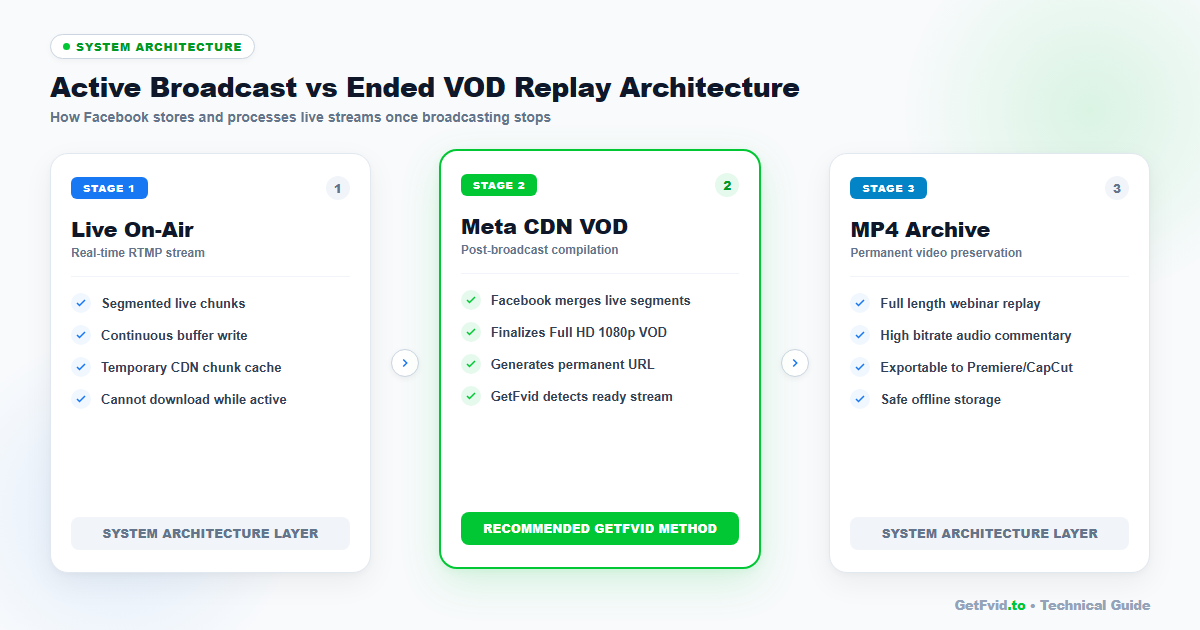
Phase 1: Real-Time RTMP Ingest (Active Broadcast)
When a creator goes live from OBS Studio, an iPhone, or a web camera, video frames are transmitted using the RTMP (Real-Time Messaging Protocol) or modern RTMPS (RTMP over TLS) standard.
- The video is chopped into micro-segments (chunks of 2 to 4 seconds each).
- Edge CDN servers distribute these chunks to viewers with minimal latency.
- Why downloaders fail here: Because the stream has no definite "end" point or static content length header (
Content-Length), standard web downloaders cannot establish a valid file boundary. Attempting to download an ongoing stream results in corrupt headers or premature termination.
Phase 2: Transcoding & Post-Broadcast Compilation (The Processing Window)
When the broadcaster taps End Live Video, Meta initiates an automated background batch process:
- It gathers all segmented video and audio chunks from the broadcast session.
- It stitches the segments together into contiguous progressive and DASH renditions.
- It generates static video index files and permanent URL endpoints.
- The Processing Window: For a 1-hour live stream, this transcoding process usually takes between 2 to 5 minutes. During this brief window, Facebook may display a placeholder message stating "Video is processing".
Phase 3: Permanent VOD Publication (Ready for Download)
Once transcoding concludes, the livestream is saved as a permanent post on the creator’s timeline or Page Video tab. The video now possesses a static file manifest and unalterable timestamp, making it 100% accessible for high-speed download through GetFvid in 1080p, 720p, or 480p.
Step-by-Step Guide: How to Download Facebook Livestream Replays
Follow these steps to extract and download any public Facebook Live stream replay to your Windows PC, Mac, iPhone, or Android device.
Step 1: Locate the Ended Livestream & Copy the Link
Finding the exact URL of an ended live stream is the most critical step, especially on mobile devices where Facebook frequently displays floating overlays.
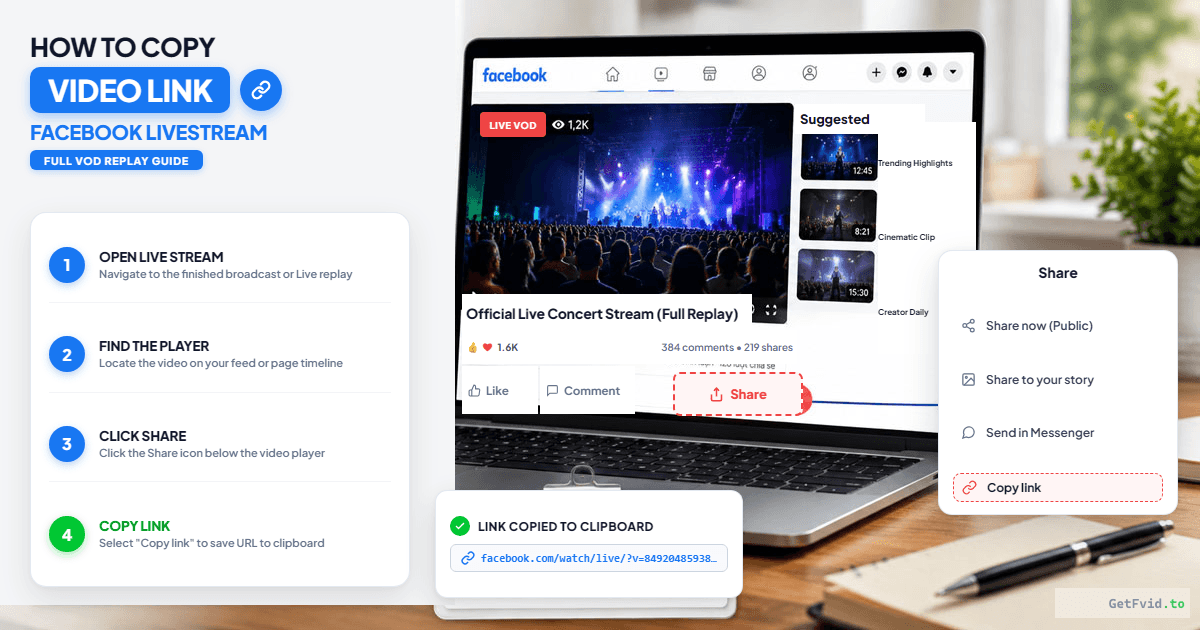
On Desktop (Windows / Mac)
- Navigate to the Facebook Page, Group, or Profile that hosted the live stream.
- Click the Videos tab on the Page navigation bar.
- Locate the livestream replay card and click on it to open the full video theater view.
- Verify that the broadcast has ended (it will say "Was live on [Date]" rather than displaying a red LIVE badge).
- Copy the URL from your browser address bar:
https://www.facebook.com/username/videos/123456789012345/(Alternatively, click the Share button below the video player and click Copy Link).
On Mobile (Facebook App on iOS & Android)
- Open the Facebook app and navigate to the live stream post.
- Tap the Share button located at the bottom-right corner of the post.
- On the sharing menu, scroll and select Copy link.
- The complete URL will be copied to your smartphone clipboard.
Step 2: Paste the Livestream Link into GetFvid
Open any web browser and visit the GetFvid Facebook Video Downloader homepage.
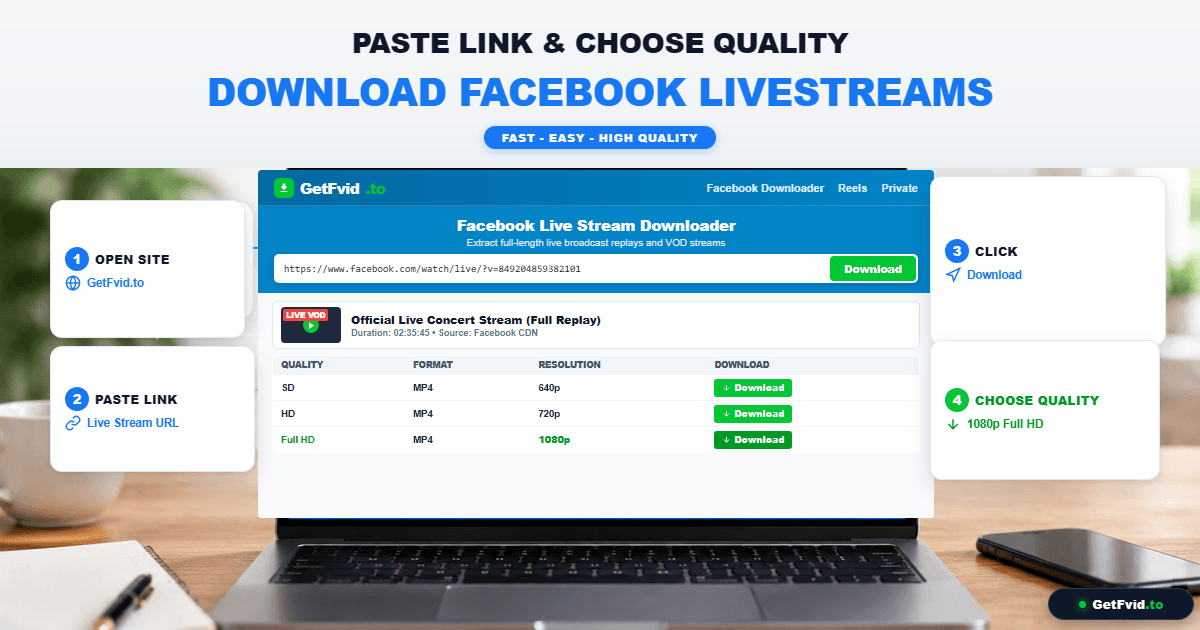
- Paste your copied livestream replay URL into the green input box.
- Click the green Download button.
- GetFvid’s media crawler immediately resolves Meta’s edge CDN, identifies the finalized VOD stream, and analyzes the highest available video and audio streams.
Step 3: Select Your Resolution & Save the MP4 File
Within 2 to 4 seconds, GetFvid presents the available download streams:
- 1080p Full HD (MP4): Best for webinars, gaming tournaments, and visual presentations where text readability is essential. (Audio and video are automatically remuxed; read our DASH Muxing Guide to learn how this prevents silent video).
- 720p HD (MP4): Balanced file size with high visual fidelity. Ideal for smartphones and mobile data connections.
- 480p / 360p SD (MP4): Compact file footprint for quick reference or archival where storage space is limited.
- Render MP3: Audio-only extraction. Perfect if you only need the speaker's vocal audio, interview speech, or sermon.
Click the Download button next to your desired resolution. The browser will begin downloading the complete, uninterrupted MP4 file.
Technical Specifications: Facebook Livestream Transcoding Matrix
Facebook treats live broadcasts differently from standard pre-recorded uploads. Broadcasters configure their encoding software according to Meta’s strict live streaming guidelines:
| Resolution Tier | Aspect Ratio | Maximum FPS | Recommended Ingest Bitrate | Audio Spec | Ideal For |
|---|---|---|---|---|---|
| 1080p (Full HD) | 16:9 (1920x1080) | 60 fps | 4,000 - 6,000 kbps | 128 - 256 kbps AAC | Gaming Creators & Level Up Program |
| 720p (HD Standard) | 16:9 (1280x720) | 30 / 60 fps | 2,500 - 4,000 kbps | 128 kbps AAC | Standard Pages, Webinars & Keynotes |
| Reels Live (Vertical) | 9:16 (1080x1920) | 30 fps | 2,000 - 3,500 kbps | 128 kbps AAC | Mobile Creator Q&A Sessions |
| SD 480p (Low Bandwidth) | 16:9 (854x480) | 30 fps | 1,000 - 1,500 kbps | 96 kbps AAC | Cellular Outdoor Broadcasts |
Pro Tip: If a broadcaster streamed in 720p at 30fps, Facebook cannot artificially upscale the replay to 1080p. The highest quality option presented on GetFvid will match the original broadcast source encoding. For more details on resolutions and bitrates, explore our Facebook Video Resolution & Bitrate Guide.
How to Download Private or Closed Group Livestreams
Many creators, coaches, and educational institutions broadcast exclusive live streams inside Private Facebook Groups.
If you try to paste a private group live stream link into a standard public video downloader, you will receive an error: "No downloadable media found" or "Content is private". This happens because public servers do not possess your private login session.
The Safe Solution: Browser Source Parsing
To download a live replay from a private group you belong to:
- Open the private group live stream replay on your desktop browser.
- Use GetFvid's dedicated Facebook Private Video Downloader.
- View the page source code (
Ctrl + Uon Windows,Cmd + Option + Uon Mac), copy the HTML, and paste it into our client-side tool. - Our client-side script parses the temporary authenticated CDN token directly within your browser without ever transmitting your credentials to external servers.
For a detailed step-by-step walkthrough, see How to Download Private Facebook Videos from Closed Groups.
Managing Large Livestream Files on iPhone & Android
A 2-hour Facebook Live replay in Full HD can easily exceed 2.5 GB to 4 GB in file size. Here is how to handle these large downloads efficiently on mobile devices:
On iPhone (iOS Safari)
- Make sure you are connected to high-speed Wi-Fi.
- In Safari, tap the Download button on GetFvid.
- Look for the small blue circular progress indicator next to the address bar. Do not close the Safari tab until the circle fills completely.
- Once completed, tap the blue download arrow, select the downloaded video, tap the Share button, and tap Save Video to transfer it directly into Apple Photos. For a step-by-step visual tutorial, consult How to Save Facebook Reels to iPhone Camera Roll.
On Android (Chrome / Files by Google)
- Tap Download on GetFvid. Chrome will display "Downloading file..." in the notification drawer.
- When the download finishes, the video is stored in your
/Internal Storage/Download/directory. - Open Google Photos or Gallery to play the file offline or trim key segments for social sharing.
4 Common Livestream Download Errors & Solutions
1. Error: "The broadcast is still ongoing"
- Cause: You clicked download while the host was still on the air.
- Solution: Wait until the host formally clicks "End Live Video". Refresh the Facebook page, ensure the red LIVE tag has disappeared, wait approximately 3 minutes for Meta's transcoding queue to finalize, and then paste the link into GetFvid.
2. Error: "Video is currently processing"
- Cause: Long broadcasts (e.g., 3 to 4 hours) require several minutes for Facebook's transcoding clusters to generate standard MP4/DASH video chunks.
- Solution: Wait 5 to 10 minutes and try again. Once Facebook’s web player plays the video smoothly at 720p or 1080p, GetFvid will instantly extract the file.
3. Error: "Audio track is muted"
- Cause: If the broadcaster played commercial background music during their stream, Meta's automated Content ID algorithms may have muted portions or the entirety of the broadcast.
- Solution: Test the video on Facebook. If you hear silence on the native post, the audio has been permanently scrubbed from Meta's CDN.
4. Downloading Multiple Livestreams at Once
- Scenario: If you are a social media manager archiving an entire week's worth of daily live broadcasts, downloading each file individually is tedious.
- Solution: Use our Facebook Bulk Downloader. Paste up to 10 video URLs simultaneously to download them in a batch or compile them into a unified ZIP archive. Learn more in our Bulk Download Multiple Facebook Videos Guide.
Frequently Asked Questions (FAQ)
Can I download a Facebook livestream after it has been deleted?
No. Once a broadcaster or Page administrator deletes the livestream post, Meta purges the associated media files from its edge CDN servers within hours. Downloaders can only access media that currently resides on active server endpoints. If a stream is important, download it as soon as the broadcast ends.
What is the maximum duration of a livestream you can download?
GetFvid supports downloading full-length Facebook livestreams up to Facebook's maximum broadcast limit (up to 8 hours for desktop streams). Note that multi-hour 1080p videos can reach 6 GB to 10 GB in size; ensure your device has sufficient local disk space before beginning.
Can I extract just the speech/audio from a church sermon or webinar live stream?
Yes. On the GetFvid results card, click the blue Render MP3 button. Our system extracts the isolated AAC audio channel and converts it into a standalone 320kbps MP3 podcast file, saving significant storage space.
Will downloading a livestream notify the broadcaster?
No. Downloading a public or private Facebook video through GetFvid is completely anonymous. The broadcaster receives zero notifications or analytics indicating that a viewer saved the video file.
Can I re-upload downloaded livestreams to YouTube or TikTok?
Only if you own the original copyright or have received explicit written permission from the broadcaster. Re-uploading someone else's livestream content without permission violates intellectual property regulations. Review our legal primer: Copyright, Fair Use & Legal Rules for Downloading Facebook Videos.
Download Facebook Videos in High Quality Now
Paste your Facebook video link into GetFvid to download to your device in 1080p Full HD, 100% free.