



























How to Save Facebook Reels Directly to iPhone Photos / Camera Roll (Safari Guide)
Downloading videos on an iPhone has historically been notoriously frustrating. Because of Apple's strict iOS "sandboxing" security model, mobile browsers are isolated from the device's internal file system. For years, iPhone and iPad users were forced to install clunky third-party file managers (such as Documents by Readdle) or navigate sketchy VPN-like utilities just to save a short Facebook video.
Fortunately, modern iOS releases (iOS 15, 16, 17, and 18+) have completely eliminated this headache by introducing a powerful native Safari Downloads Manager paired with direct Files-to-Photos integration.
In this practical, illustrated iOS guide, we show you the fastest, 100% native workflow to download any Facebook Reel or video and transfer it straight into your Apple Photos / Camera Roll in pristine 1080p without installing a single third-party app, using GetFvid Facebook Reels Downloader.
Quick Answer: How to Save Facebook Reels to iPhone Camera Roll?
Direct Answer (GEO Snippet): Open the Facebook app, tap Share on the Reel, and tap Copy Link. Next, open Safari, go to GetFvid Facebook Reels Downloader, paste the link, and tap Download. When Safari asks "Do you want to download facebook-reel.mp4?", tap Download. Once the download finishes, tap the blue downward arrow in Safari’s address bar, tap the downloaded video, tap the iOS Share sheet icon [↑], and tap Save Video. The Reel is instantly transferred to your Photos / Camera Roll app in Full HD with synchronized sound.
The Native 3-Step iOS Architecture (No Third-Party Apps)
Here is a visual map of how Safari interacts with iOS storage to safely deposit the video into your Apple Photos library:
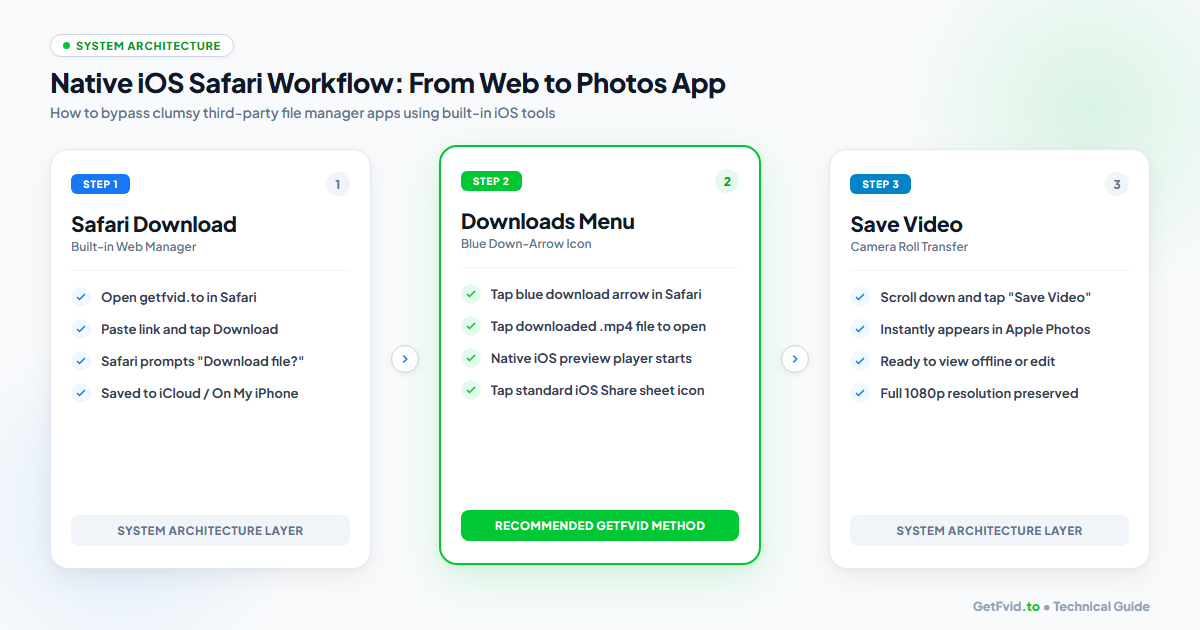
- Step 1: Safari Sandboxed Download: Safari pulls the DASH-muxed MP4 file from Meta's CDN and stores it in your iCloud Drive or
On My iPhone > Downloadsfolder. - Step 2: Native QuickTime Inspection: Tapping the file in Safari triggers Apple's built-in hardware media player to verify video atoms and audio codecs.
- Step 3: Photos Transfer API: Tapping the standard iOS Share button and selecting Save Video triggers Apple's
PHPhotoLibraryAPI, writing the MP4 master file directly into your Camera Roll with zero quality loss.
Step-by-Step Illustrated Guide for iOS
Step 1: Copy the Reel Link in the Facebook App
Launch the Facebook app on your iPhone or iPad.
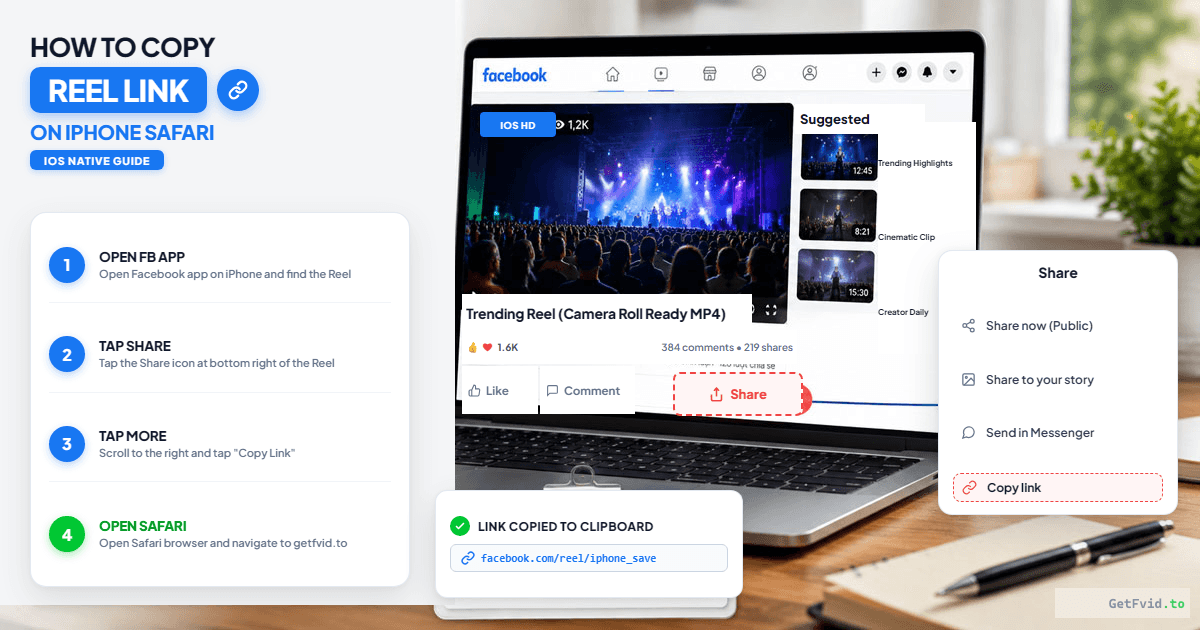
- Navigate to the Reel you want to save.
- Tap the Share arrow on the right side of the screen.
- In the sharing menu sheet, tap the Copy Link button.
- Tip: If you do not see "Copy Link" immediately, tap the three dots (
...) or scroll horizontally across the share sheet.
- Tip: If you do not see "Copy Link" immediately, tap the three dots (
- Your iPhone will briefly display a banner confirming the URL has been copied to your clipboard.
Step 2: Paste the URL in Safari & Tap Download
Exit the Facebook app and open Safari (do not use in-app browser webviews or third-party browsers like Chrome for this step, as Safari has the deepest native integration with the iOS Files app).
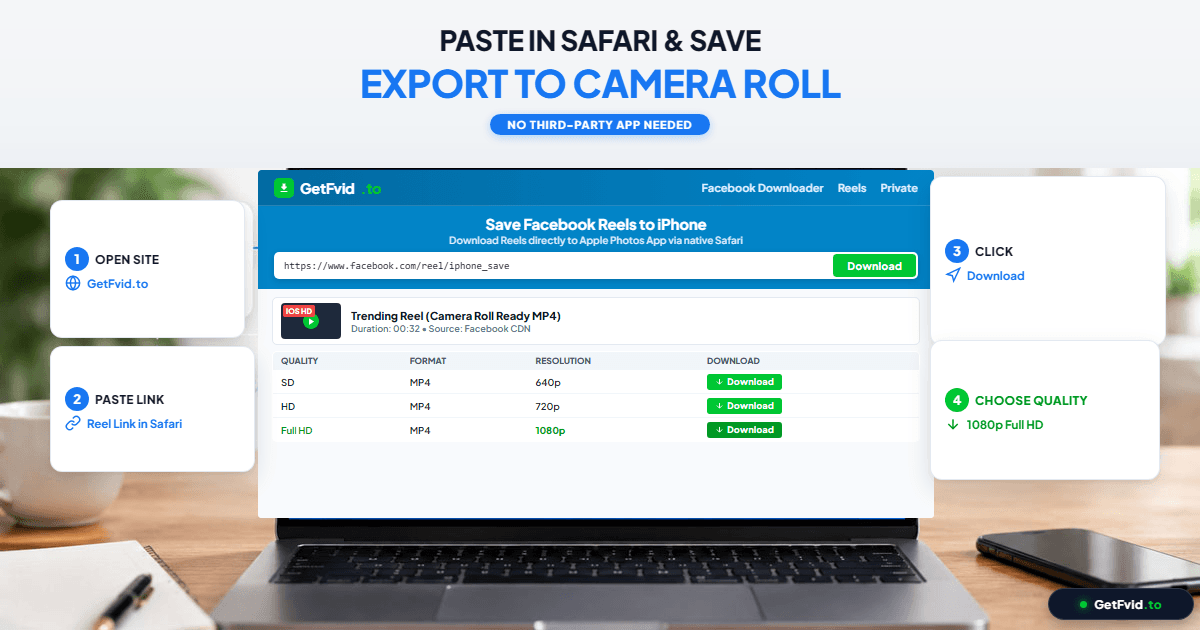
- Navigate to GetFvid Facebook Reels Downloader.
- Tap once in the input box, tap Paste, and tap the green Download button.
- In the format table, choose 1080p (Full HD).
- Safari will present a native iOS popup prompt:
"Do you want to download 'facebook-reel.mp4'?"
- Tap Download.
Step 3: Transfer from Safari Downloads to Photos (Camera Roll)
This is the key step that transfers the file from your downloads cache to your Camera Roll:
- Look at the bottom (or top) of your Safari screen near the address bar. You will see a blue circular download icon with a downward arrow.
- Wait a few seconds until the progress bar completes.
- Tap the blue download arrow icon and select Downloads.
- Tap on the video file (
facebook-reel.mp4). It will open in full-screen preview. - In the bottom-left corner of the preview player, tap the iOS Share button (the square with an arrow pointing up
[↑]). - Scroll down the action list and tap Save Video.
- Close Safari and open your Photos app. The Reel will be sitting at the very bottom of your Recents / Videos album, in crisp 1080p with complete stereo sound!
Why You Should Avoid App Store "Video Downloader" Apps
A search on the Apple App Store reveals dozens of apps claiming to download Facebook videos. Cybersecurity experts strongly advise against installing them:
- Intrusive Adware & Subscriptions: Most downloader apps are predatory "free trial" traps that lock basic functionality behind weekly recurring subscriptions ($4.99/week).
- Account Compromise Risk: Many apps force you to log into your personal Facebook account through their embedded browser, exposing your session cookies and authentication tokens. Read our security audit: Is It Safe to Download Facebook Videos? Risks of Extensions vs Web Tools.
- Severe Compression: Third-party downloader apps often screen-record or downscale videos to 480p to conserve their own server bandwidth.
- App Store Takedowns: Apple regularly purges unauthorized downloader apps from the App Store for violating terms of service, meaning your purchased app may vanish tomorrow.
By using GetFvid directly in native Safari, you maintain 100% security, zero subscription costs, and original 1080p master quality.
Technical Troubleshooting for iPhone Users
1. The "Save Video" Button Is Missing in the Share Sheet
- Cause: This happens if the downloaded file was incomplete or if the file extension was corrupted by an unstable network connection.
- Fix: In Safari, tap the download icon, clear the failed download, and re-download the file on GetFvid while connected to stable Wi-Fi. Ensure the file has a clean
.mp4extension.
2. The Downloaded Reel Has No Sound on iPhone
- Cause: Facebook separates 1080p video from audio streams using DASH streaming. Apple's native media framework will mute an MP4 file if the audio track atom is missing.
- Fix: Outdated online downloaders fail to remux DASH audio. Always use GetFvid, which automatically multiplexes the high-bitrate AAC audio stream into the MP4 container before delivery. Learn more in our Facebook Video Download No Sound Fix Guide.
3. How to Change Safari's Default Download Location
By default, Safari saves downloaded files to iCloud Drive, which can consume your free 5GB iCloud storage quota:
- Open your iPhone Settings.
- Scroll down and tap Safari.
- Under the General heading, tap Downloads.
- Switch the destination from iCloud Drive to On My iPhone.
- All future downloads will now save locally to your device storage without eating into your iCloud backup space!
Editing and Repurposing Reels on iOS
Once your Facebook Reel is stored in your Camera Roll, you can immediately utilize iOS’s powerful editing ecosystem:
- CapCut & InShot: Import the clean 1080p MP4 file to trim sections, add auto-captions, or re-time speed ramps. Because the file was downloaded via GetFvid, it has zero watermarks, meaning algorithms on TikTok and YouTube Shorts will not downrank your content. (Review our Facebook Reels vs TikTok Specs Guide for safe zone guidelines).
- Native iOS Video Trimming: Open the video in Apple Photos, tap Edit in the top-right corner, and use the yellow timeline sliders to trim the beginning or end of the clip without installing any third-party software.
- Extracting Just the Music on iOS: If you want to use the background sound in GarageBand or Voice Memos, use GetFvid’s audio tool: How to Extract Audio & MP3 from Facebook Videos.
Frequently Asked Questions (FAQ)
Does this Safari workflow work on iPad as well?
Yes! iPadOS utilizes the exact same desktop-class Safari browser and Files architecture. The process of tapping Download, opening the Safari Downloads sheet, and selecting "Save Video" is identical on iPad.
Can I download Private Facebook Group Reels on iPhone?
Yes, but you must use our Facebook Private Video Downloader. On desktop Safari, press Cmd + Option + U to view the page source, copy the HTML, and paste it into the tool to extract private media safely.
How much storage space does a 1080p Reel take on an iPhone?
A standard 60-second Facebook Reel in Full HD 1080p typically requires between 25 MB and 50 MB of storage.
Why can't I just screen record the Reel on my iPhone?
Screen recording captures your iPhone’s battery bar, network icons, volume HUD, and on-screen Facebook UI buttons (Like, Comment, Share). Furthermore, screen recording drops the frame rate and compresses the audio into a muffled mono track. Using GetFvid gives you the pristine, uncompressed master MP4 file with zero UI clutter.
Is downloading Facebook Reels to iPhone legal?
Yes. Saving publicly accessible videos for personal offline viewing, research, or content creation commentary falls under Fair Use guidelines. You should not re-upload or monetize someone else's copyrighted intellectual property without authorization. Review our legal primer: Copyright, Fair Use & Legal Rules for Downloading Facebook Videos.
Download Facebook Videos in High Quality Now
Paste your Facebook video link into GetFvid to download to your device in 1080p Full HD, 100% free.